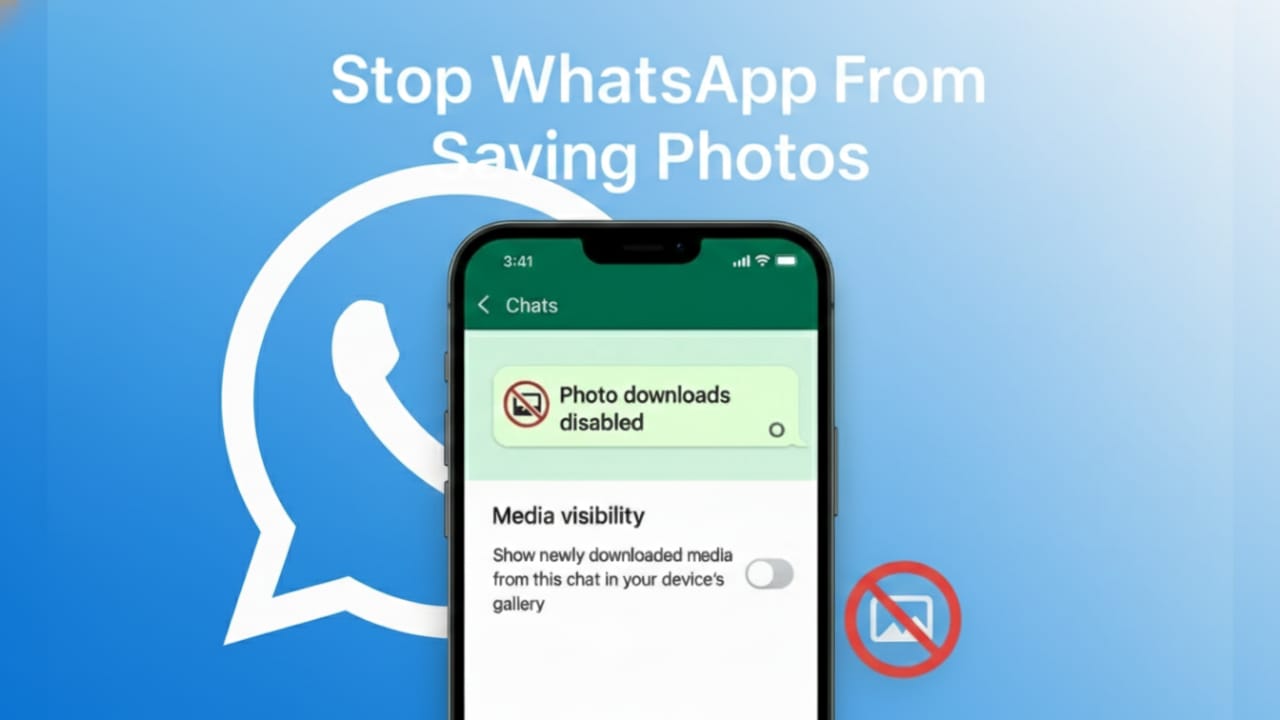
If your phone gallery is constantly filling up with WhatsApp images you never intended to save, you’re not alone. Many users face this issue because WhatsApp downloads media automatically by default.
While this feature can be convenient, it often leads to unnecessary storage usage, privacy concerns, and a cluttered gallery. The good news is—you can easily disable this behavior and decide exactly which photos stay on your phone.
This guide explains how to stop WhatsApp from saving photos automatically, step by step, for both Android and iPhone users.
Also read: How to Use One WhatsApp Account on Two Phones (Official & Safe Method)
Why You Should Disable Automatic Photo Saving on WhatsApp
Turning off auto-saving is a smart move for several practical reasons:
- Your gallery stays clean and organized
- Phone storage lasts longer
- Personal images don’t appear without your permission
- Only important photos are saved
- Less distraction from memes and forwarded images
Once auto-saving is disabled, WhatsApp media remains inside the app unless you manually choose to save it.
How to Stop WhatsApp From Saving Photos on Android
Hide WhatsApp Images From Gallery
This option prevents WhatsApp media from appearing in your phone’s gallery.
- Open WhatsApp
- Tap the three-dot menu
- Go to Settings
- Select Chats
- Turn off Media visibility
This hides all WhatsApp images from your gallery while keeping them inside the app.
Disable Automatic Photo Downloads
To stop photos from downloading automatically:
- Open Settings in WhatsApp
- Tap Storage and data
- Under Media auto-download, adjust:
- When using mobile data
- When connected on Wi-Fi
- When roaming
- Uncheck Photos in each option
Now, photos won’t download unless you tap on them manually.
How to Stop WhatsApp From Saving Photos on iPhone
For iPhone users, WhatsApp provides a simple built-in switch.
- Open WhatsApp
- Tap Settings
- Go to Chats
- Turn off Save to Camera Roll
This prevents WhatsApp from automatically adding images to your Photos app.
Disable Photo Saving for Specific Chats or Groups
If you only want to block photos from certain chats, WhatsApp allows chat-level control.
On Android
- Open the chat
- Tap the contact or group name
- Select Media visibility
- Choose No
On iPhone
- Open the chat
- Tap the contact or group name
- Tap Save to Camera Roll
- Select Never
This is useful for noisy group chats where media isn’t important.
How to Save WhatsApp Photos Manually
Even after disabling auto-saving, you can still save important images:
- Open the photo
- Tap the menu icon (Android) or share button (iPhone)
- Select Save
This gives you full control without blocking access to essential media.
Extra Tips to Manage WhatsApp Storage Efficiently
To keep your phone storage optimized:
- Use Settings → Storage and data → Manage storage
- Delete large or unnecessary files
- Avoid downloading forwarded images blindly
- Back up important photos to cloud storage
- Clear old media from inactive chats
These small habits can significantly improve phone performance.
Also read: How to Edit or Delete WhatsApp Messages Easily (Step-by-Step Guide)
FAQs
Will disabling auto-save delete existing WhatsApp photos?
No. It only affects future downloads. Existing photos remain unchanged.
Can I turn auto-saving back on later?
Yes. You can re-enable it anytime from WhatsApp settings.
Does this stop videos from downloading too?
Only if you disable video downloads separately under media auto-download settings.
Conclusion
WhatsApp’s automatic photo saving may be convenient, but it often creates more problems than benefits. By disabling this feature, you gain better storage control, improved privacy, and a cleaner gallery.
Whether you turn it off completely or limit it to specific chats, the result is a more organized and stress-free phone experience. Take a minute to adjust these settings—it’s a small change that makes a big difference.

Yogi Rajput is the author of Uscart.in, where he writes simple and helpful content about AI and how-to guides for beginners.