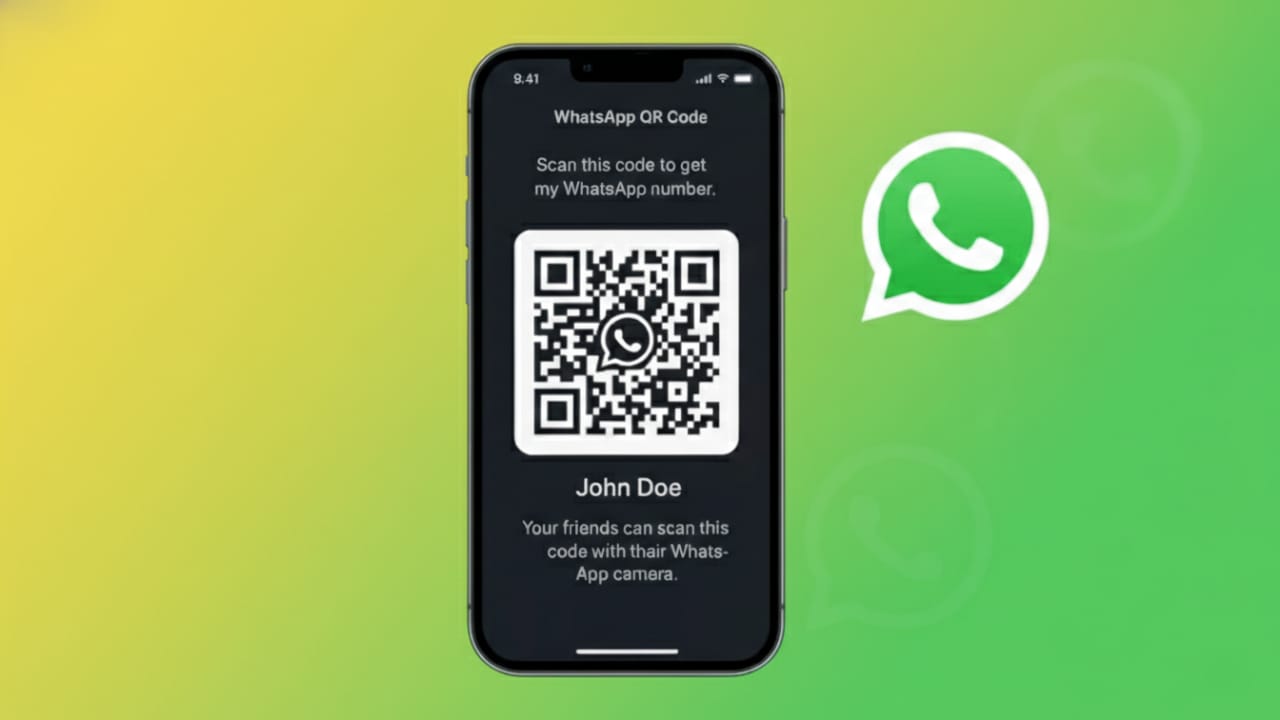
Adding contacts on WhatsApp no longer requires saving phone numbers manually. With the WhatsApp QR code feature, you can connect with anyone in seconds by simply scanning a code.
Whether you want to share your contact details with friends, customers, or event visitors, WhatsApp QR codes offer a fast, secure, and error-free solution. This guide explains everything you need to know—from locating your QR code to sharing and resetting it safely.
Also read: How to Watch Instagram Reels While Chatting on WhatsApp (Android & iPhone Guide)
What Is a WhatsApp QR Code?
A WhatsApp QR code is a unique, scannable code connected directly to your WhatsApp number. When someone scans it, a chat window opens instantly without saving your contact first.
This feature is especially helpful for:
- Business networking
- Shops, cafés, and service counters
- Social media contact sharing
- Events and meetups
- Quick personal connections
You stay in full control, and the code can be changed anytime if needed.
Where to Find Your WhatsApp QR Code
WhatsApp makes it easy to access your QR code on both Android and iPhone.
Steps:
- Open WhatsApp
- Go to Settings
- Tap the small QR code icon next to your profile name
Your personal QR code will appear instantly on the screen.
How to Share Your WhatsApp QR Code
There are two simple ways to share your QR code, depending on how you want others to receive it.
Method 1: Share Instantly from WhatsApp
This is the fastest option.
Steps:
- Open your QR code page
- Tap the Share icon
- Choose an app or platform such as:
- Messaging apps or Bluetooth
The recipient can scan the code directly from their screen.
Method 2: Save QR Code as an Image
If you want to use your QR code on a website, poster, or business card, saving it as an image works best.
Steps:
- Open your QR code
- Tap Share
- Select Save to Gallery
Once saved, you can upload or print it anywhere you like.
How to Scan a WhatsApp QR Code
Scanning a WhatsApp QR code does not require any external app.
Steps to scan:
- Open WhatsApp
- Go to Settings
- Tap the QR code icon
- Switch to the Scan Code tab
- Point your camera at the QR code
The chat will open automatically within seconds.
How to Reset Your WhatsApp QR Code
If your QR code was shared publicly or you’re receiving unwanted messages, resetting it is a smart move.
Steps to reset:
- Open your QR code screen
- Tap the three-dot menu
- Select Reset QR Code
- Confirm your choice
A new QR code will be generated instantly, and the old one will no longer work.
Safety Tips for Using WhatsApp QR Codes
Your QR code is linked to your phone number, so it should be handled carefully.
Best practices:
- Share it only with people you trust
- Avoid posting it publicly unless necessary
- Reset the code if it’s misused
- Keep an eye on unknown messages after sharing
Using these precautions helps protect your privacy and reduces spam.
FAQs
Is WhatsApp QR code free to use?
Yes, WhatsApp QR codes are completely free and available to all users.
Can I change my QR code anytime?
Yes, you can reset your QR code whenever you want from the settings.
Does scanning a QR code save the contact automatically?
No, it opens a chat window. Saving the contact is optional.
Can businesses use WhatsApp QR codes?
Yes, they are commonly used by businesses for quick customer communication.
Also read: How to Use One WhatsApp Account on Two Phones (Official & Safe Method)
Conclusion
WhatsApp QR codes make connecting faster, easier, and more accurate than traditional contact sharing. Whether you’re using it for personal chats or business communication, this feature saves time and removes the risk of typing errors.
With options to share, scan, and reset your QR code anytime, WhatsApp gives you complete control over how people reach you. Use it thoughtfully, follow basic safety practices, and enjoy a smoother way to connect with others.

Yogi Rajput is the author of Uscart.in, where he writes simple and helpful content about AI and how-to guides for beginners.