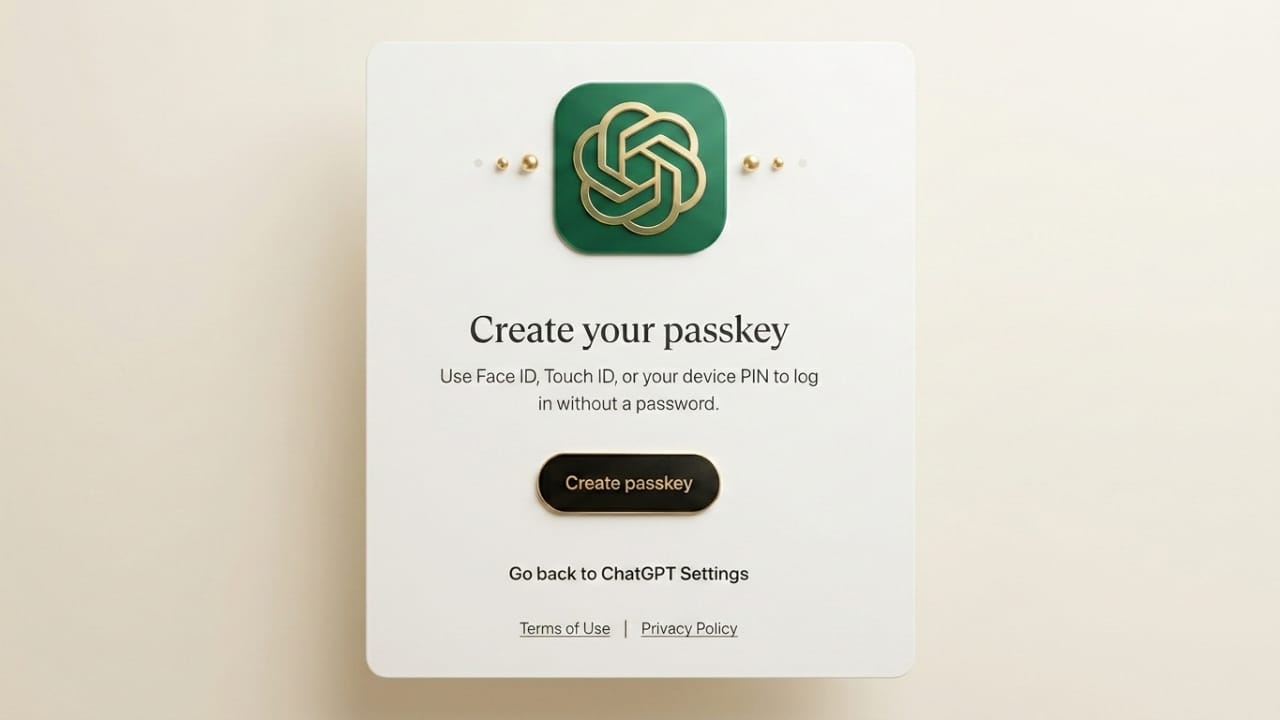
Online security has become a major concern as more of our daily activities move to digital platforms. If you regularly use services from OpenAI, keeping your account protected should be a priority.
Traditional passwords are still widely used, but they often come with risks such as phishing attacks, weak password choices, and data leaks. To address these issues, many platforms now support passkeys, a modern login method designed to make authentication safer and easier.
This guide explains what passkeys are, how they function, and how you can enable them to improve the security of your OpenAI account.
Also read: How to Use ChatGPT for the First Time: A Simple Beginner’s Guide (Step-by-Step)
What Are Passkeys?
Passkeys are a password-free way to sign in to online accounts. Instead of entering a password each time, you confirm your identity using a secure method available on your device.
Common verification methods include:
- Fingerprint authentication
- Face recognition
- Device PIN or screen lock
- Physical security keys
Passkeys rely on Public Key Cryptography, a technology that uses two cryptographic keys—one stored on your device and another on the service you are accessing. This system significantly reduces the chances of password theft or phishing.
Why Use Passkeys for Your OpenAI Account?
Using passkeys provides several advantages over traditional passwords.
1. Stronger Protection
Passkeys cannot be guessed or reused like regular passwords. They also help prevent phishing because the authentication happens directly between your device and the service.
2. No Password Management
You do not need to remember complex passwords or store them in password managers.
3. Device-Based Verification
Authentication happens on a trusted device that you control, making unauthorized access more difficult.
4. Faster Login Experience
Signing in becomes much quicker. A fingerprint or face scan usually takes only a few seconds.
Requirements Before Setting Up Passkeys
Before enabling passkeys, make sure your setup supports the feature.
You will typically need:
- A modern smartphone, laptop, or tablet
- A compatible browser such as Google Chrome, Microsoft Edge, Safari, or Mozilla Firefox
- Biometric authentication (fingerprint or face recognition) or a secure device PIN
Keeping your operating system and browser updated will also improve compatibility and security.
How to Enable Passkeys for Your OpenAI Account
Follow these steps to activate passkey login.
Step 1: Log In to Your Account
Visit the official OpenAI website and sign in using your current login method.
Step 2: Open Account Settings
After logging in, access your profile or account dashboard and locate the settings section.
Step 3: Navigate to Security Settings
Look for options related to security, login, or authentication.
Step 4: Add a Passkey
Select the option to add a passkey. Your device will prompt you to confirm your identity using:
- Fingerprint scan
- Face recognition
- Device PIN
Once verified, your device will generate and store the passkey securely.
Step 5: Complete the Setup
After confirmation, the passkey will be saved. From now on, you can sign in using biometric authentication instead of typing a password.
Using Passkeys on Multiple Devices
Passkeys are not limited to one device. You can register them on multiple devices such as:
- Smartphones
- Laptops
- Tablets
Some ecosystems also allow synchronization across devices. For example:
- iCloud Keychain
- Google Password Manager
These services securely store and sync your passkeys within your account ecosystem.
What Happens If You Lose Your Device?
Losing a device can happen, but your account can still remain secure if you follow proper steps.
If a registered device is lost:
- Log in using another trusted device.
- Open your account’s security settings.
- Remove the lost device from your list of passkeys.
It is also wise to keep a backup sign-in method available in case you need account recovery.
Passkeys vs Traditional Passwords
| Feature | Password | Passkey |
|---|---|---|
| Can be guessed | Yes | No |
| Phishing risk | High | Very low |
| Requires memorization | Yes | No |
| Biometric login | Not supported | Supported |
Passkeys provide a simpler and more secure authentication method compared to standard passwords.
Extra Security Tips for Your OpenAI Account
Even with passkeys enabled, following basic security practices will help protect your account further.
Consider these precautions:
- Keep your device software updated
- Enable screen lock or biometric security
- Avoid signing in on public or shared computers
- Use additional verification methods when available
Layering security measures always strengthens account protection.
Also read: Google Introduces Nano Banana 2: Faster and Smarter AI Image Generation Tool
Frequently Asked Questions (FAQs)
Are passkeys safer than passwords?
Yes. Passkeys are designed to resist phishing attacks and password leaks because they do not rely on shared secrets like traditional passwords.
Can I still use my password after enabling a passkey?
In many cases, yes. Platforms usually allow both methods so you can keep a backup login option.
Do passkeys work across devices?
Yes. Many systems allow passkeys to sync securely between devices using trusted services like device account managers.
Do I need biometric authentication to use passkeys?
Not necessarily. If biometric verification is not available, a device PIN or screen lock can often be used instead.
Conclusion
Switching to passkeys is one of the easiest ways to improve the security of your online accounts. Instead of relying on passwords that can be reused or stolen, passkeys use device-based authentication to provide stronger protection.
For users of OpenAI services, enabling passkeys offers a safer and faster login experience. With just a few setup steps, you can significantly reduce the risk of unauthorized access while making everyday sign-ins more convenient.
If online security matters to you, adopting passkeys is a practical step toward better digital protection.

Yogi Rajput is the author of Uscart.in, where he writes simple and helpful content about AI and how-to guides for beginners.