Instagram gives creators the flexibility to work on content at their own pace. Whether you’re editing a photo, preparing a Reel, or drafting a Story, you don’t always have to publish immediately.
That’s where Instagram drafts come in. Drafts allow you to pause your work and return to it later. However, many users struggle to locate saved drafts or accidentally lose them. This guide explains how Instagram drafts work, where to find them, and how to delete drafts you no longer need, all in a simple and beginner-friendly way.
Also read: How to Add, Edit, or Remove Pronouns on Your Instagram Profile (Step-by-Step Guide)
What Are Instagram Drafts?
An Instagram draft is an unfinished post that you choose to save instead of publishing right away. It allows you to continue editing the same content later without starting from scratch.
Instagram supports drafts for:
- Photo posts
- Video posts
- Reels
- Stories
Important to note: drafts are saved only on your device. They are not stored on Instagram’s servers and won’t appear if you log in from another phone.
How Instagram Drafts Are Stored
Instagram drafts are stored locally within the app on your phone. Because of this:
- Drafts do not sync across devices
- Logging out can remove them
- Clearing app data may delete them permanently
If a draft contains important media, always keep a copy in your phone’s gallery.
How to Save a Draft on Instagram
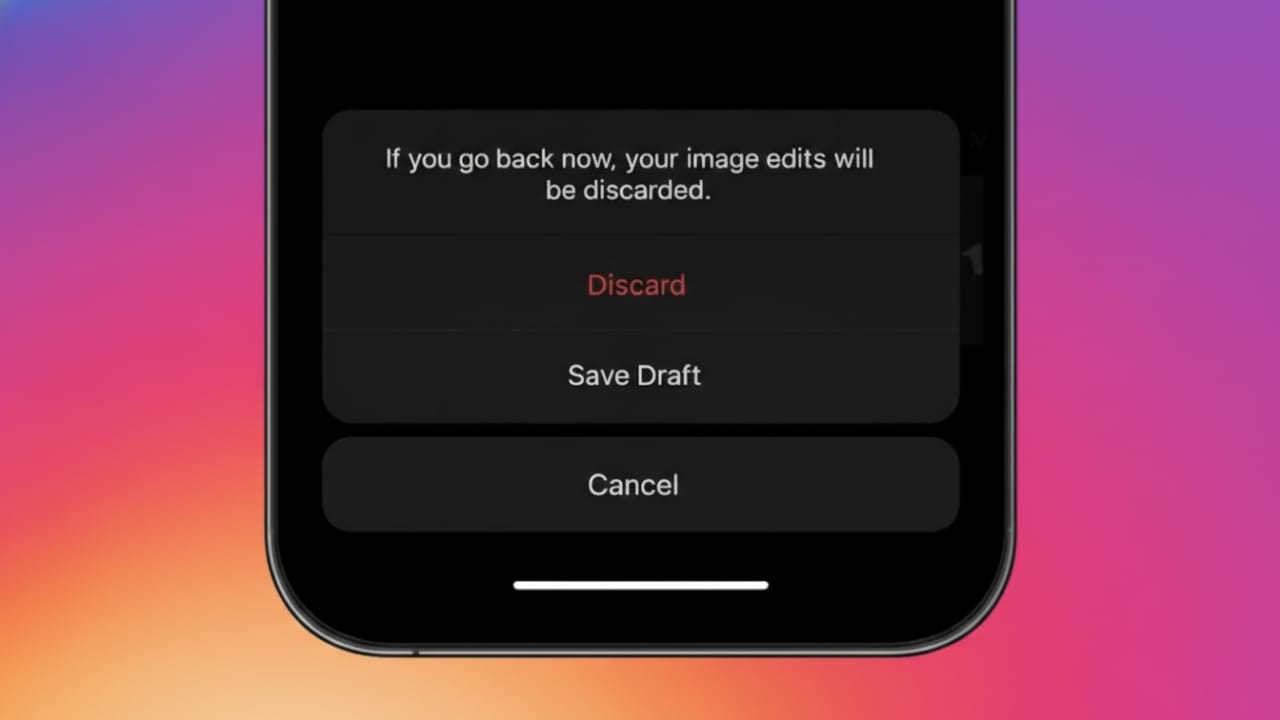
Instagram gives you the option to save a draft when you exit the editor properly.
Steps to Save a Draft:
- Open the Instagram app
- Tap the plus (+) icon
- Choose Post, Reel, or Story
- Select your media and start editing
- Tap the back arrow
- Select Save Draft when prompted
If the app is closed suddenly or you exit without saving, the draft may not be stored.
Where to Find Your Instagram Drafts
Draft locations vary based on the type of content you created.
Finding Post Drafts
- Open Instagram
- Tap the plus (+) icon
- Select Post
- Tap Drafts at the top
All saved post drafts will be displayed here.
Finding Reel Drafts
- Tap the plus (+) icon
- Choose Reel
- Tap Drafts
Your saved Reel drafts remain available until published or deleted.
Finding Story Drafts
- Tap your profile picture to add a Story
- Select Drafts
Story drafts are temporary and may disappear after a certain period.
How to Delete Instagram Drafts
Removing old drafts helps keep your workspace clean.
Delete Post or Reel Drafts
- Open Instagram
- Go to Drafts
- Tap Manage
- Select drafts you want to remove
- Tap Delete
Delete Story Drafts
- Open the Story editor
- Go to Drafts
- Press and hold the draft
- Tap Delete
Once deleted, drafts cannot be recovered.
Why Instagram Drafts Sometimes Disappear
Drafts may vanish due to:
- Logging out of your account
- Reinstalling the Instagram app
- Clearing app cache or data
- Switching to a new phone
- Automatic storage cleanup by the device
To prevent data loss, always save original photos and videos separately.
Tips to Manage Instagram Drafts Effectively
- Keep a backup of important media in your gallery
- Avoid clearing app data unless necessary
- Review drafts regularly to reduce clutter
- Publish time-sensitive drafts sooner
- Don’t rely on drafts for long-term storage
Also read: How to Create and Use Saved Replies on Instagram to Reply Faster
FAQs
Are Instagram drafts saved automatically?
No. You must manually choose Save Draft when exiting the editor.
Can I access drafts on another phone?
No. Drafts are device-specific and do not sync across devices.
How long do Instagram drafts last?
Posts and Reels usually stay until deleted, while Story drafts may expire after a short time.
Can deleted drafts be restored?
No. Once deleted, drafts are permanently removed.
Conclusion
Instagram drafts are a helpful feature for planning and editing content without pressure. Once you understand how drafts are saved, where to find them, and how to manage them properly, content creation becomes smoother and more organized.
Just remember: drafts live on your device, not in the cloud. If your content matters, always keep a backup. With the right habits, you can use Instagram drafts confidently without the fear of losing your work.

Yogi Rajput is the author of Uscart.in, where he writes simple and helpful content about AI and how-to guides for beginners.