Sending messages in a hurry is part of everyday life. Sometimes it’s a spelling error, sometimes a message goes to the wrong chat, or sometimes the wording just doesn’t feel right after sending.
To handle these situations, WhatsApp provides two useful options: editing messages and deleting messages. When used correctly, these features help keep conversations clear, accurate, and stress-free.
This guide explains how both options work, when to use each one, and important things you should know before making changes.
Also read: How to Share Your WhatsApp QR Code Easily (Step-by-Step Guide)
Why Editing and Deleting Messages Is Useful
Mistakes in chats are common, especially in fast conversations or group discussions. WhatsApp’s edit and delete tools help you:
- Correct typing or spelling errors
- Prevent misunderstandings
- Remove messages sent to the wrong chat
- Fix incorrect details like dates or numbers
- Keep conversations neat and professional
These features give you more control over your messages without creating confusion.
How to Delete a Message on WhatsApp
Deleting a message is helpful when it should no longer exist in the chat.
WhatsApp Deletion Options
When deleting a message, WhatsApp offers two choices:
- Delete for Everyone – Removes the message from both sides of the chat
- Delete for Me – Removes the message only from your phone
Steps to Delete a Message
- Open WhatsApp on your phone
- Open the chat containing the message
- Press and hold the message
- Tap the trash (delete) icon
- Choose your preferred delete option
- Confirm your action
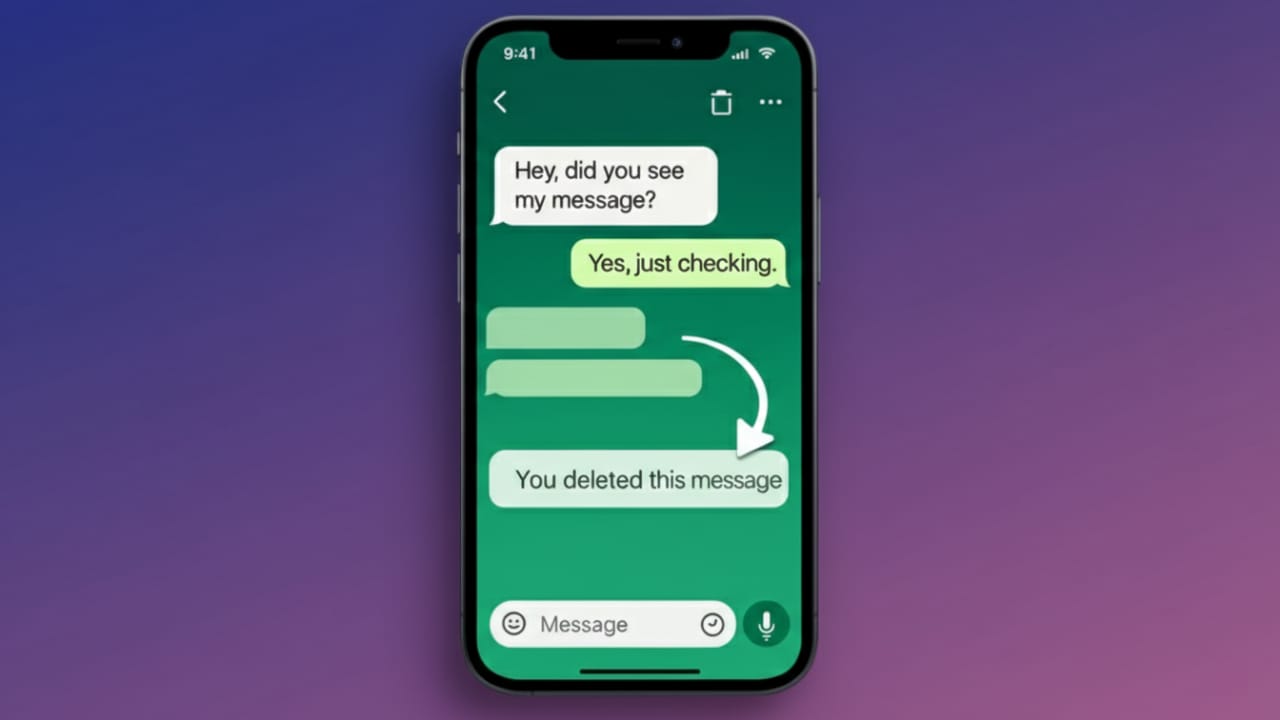
Once deleted for everyone, WhatsApp displays a notice saying that the message was removed.
Important Things to Know
- The “Delete for Everyone” option works only within a limited time after sending
- If someone already read the message, deleting it won’t erase their memory
- In group chats, deletion rules may depend on group permissions
- Deleted messages always leave a visible placeholder
How to Edit a Message on WhatsApp
Editing is useful when the message is mostly correct but needs a small fix.
Steps to Edit a Message
- Open the relevant chat
- Tap and hold the message you want to change
- Select the Edit option
- Update the text
- Tap the checkmark to save
After editing, the message remains visible with an “Edited” label.
Things to Keep in Mind
- Editing works only for text messages
- You can edit a message only for a short time after sending
- Recipients can see that the message was edited
- Older app versions may not support this feature
Edit vs Delete: Which Option Should You Choose?
Choose Delete If
- The message was sent to the wrong person
- Sensitive or private information was shared
- The message should not remain in the chat
- The content is completely incorrect
Choose Edit If
- There’s a spelling or typing mistake
- A date, number, or link needs correction
- The message is mostly fine but needs clarity
- You want to keep the conversation flow intact
Choosing the right option depends on how serious the mistake is.
Extra Tips for Better Message Control
- Keep WhatsApp updated to access the latest features
- Review important messages before sending
- Be aware of group rules set by admins
- Use disappearing messages for temporary conversations
- Remember that edits and deletions are visible to others
Also read: How to Enable Two-Step Verification on WhatsApp and Secure Your Account
Frequently Asked Questions (FAQs)
Can edited messages be tracked?
Recipients can see that a message was edited, but they cannot view previous versions.
Do deleted messages disappear completely?
The content disappears, but WhatsApp shows a notice that a message was deleted.
Can I edit media messages?
No, only text messages can be edited.
Conclusion
WhatsApp’s edit and delete features are simple but powerful tools for managing conversations. Whether you need to fix a small typo or remove a message entirely, these options help you communicate more confidently.
By understanding when and how to use them, you can keep your chats accurate, respectful, and stress-free—without disrupting the flow of conversation.
Use these features wisely, and messaging mistakes will no longer feel like a big problem.

Yogi Rajput is the author of Uscart.in, where he writes simple and helpful content about AI and how-to guides for beginners.