Sometimes your Facebook profile no longer represents who you are. It could be a spelling error, a name change after marriage, or the need for a more professional identity. Facebook allows users to update both their profile name and username, but each follows its own process and rules.
In this guide, you’ll learn how to safely change your Facebook name and username on mobile and desktop, what rules you must follow, and what to expect after making changes.
Also read: How to Change or Remove Your Last Name on Facebook (Step-by-Step Guide)
Facebook Name vs Username: What’s the Difference?
Before making any updates, it’s important to understand that name and username are two separate things on Facebook.
Facebook Name
- This is the name shown on your profile
- Appears on posts, comments, and messages
- Represents how people see you on Facebook
Facebook Username
- This creates your profile link (example: facebook.com/yourusername)
- Must be unique
- Often used for sharing your profile publicly
Because they serve different purposes, Facebook lets you change them separately.
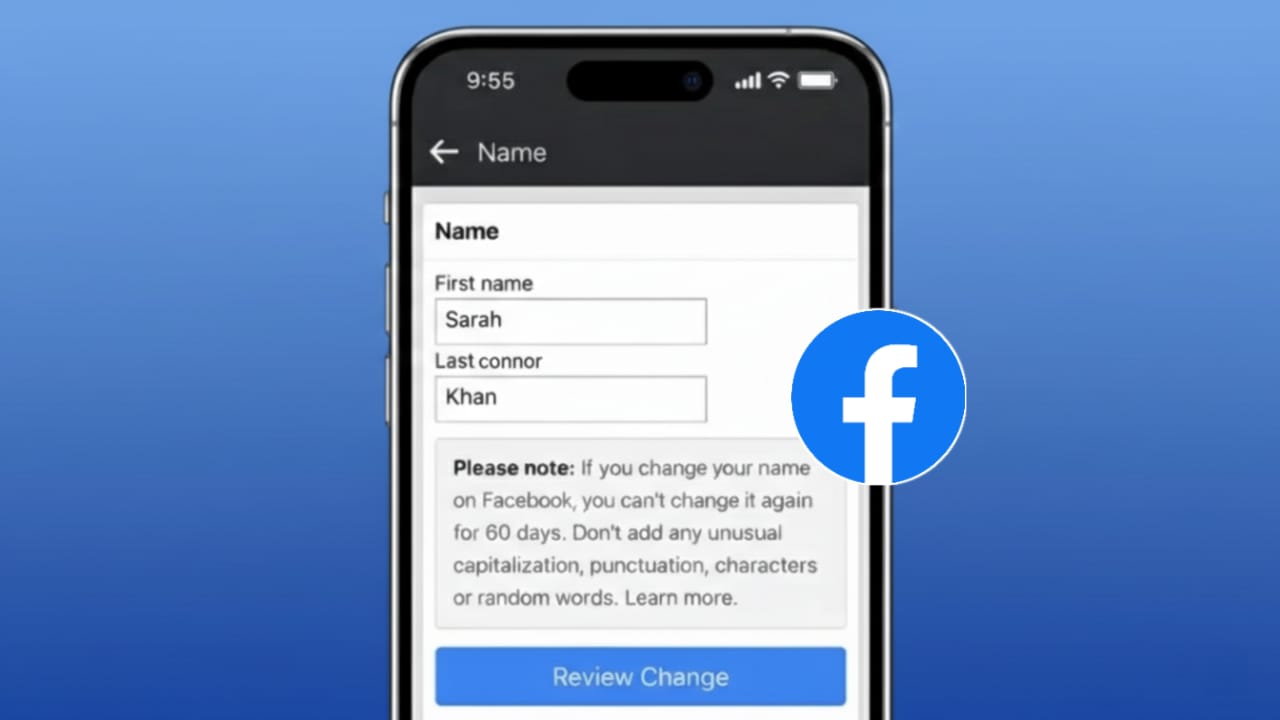
How to Change Your Facebook Name
You can update your Facebook name using either the mobile app or a desktop browser.
Change Name on Android or iPhone
- Open the Facebook app
- Tap the menu icon
- Go to Settings & privacy → Settings
- Tap Personal details
- Select Name
- Enter your new first and last name
- Review and save
Facebook may take up to 24 hours to review the change.
Change Name on Desktop
- Open Facebook in a web browser
- Click your profile picture
- Go to Settings & privacy → Settings
- Select Personal details
- Click Name
- Enter your updated name
- Save changes
Facebook Name Change Rules You Must Follow
Facebook has strict guidelines for name changes. Ignoring them can cause rejection or temporary restrictions.
- Name can be changed only once every 60 days
- Numbers, symbols, emojis, or special characters are not allowed
- Unusual capitalization is not accepted
- The name must resemble a real, authentic identity
- Facebook may request ID verification in some cases
Always choose a name that looks genuine and natural.
How to Change Your Facebook Username
Your username controls your profile URL and is handled separately from your name.
Steps to Update Facebook Username
- Open Facebook
- Go to Settings & privacy → Settings
- Tap Personal details
- Select Username
- Enter a new available username
- Save changes
Username Guidelines
- Must be unique
- Can include letters, numbers, and periods
- No spaces or special symbols
If a username is already taken, Facebook will ask you to choose another.
What Happens After You Change Your Username?
Once your username is updated, a few things change automatically.
- Your profile URL updates instantly
- Old profile links may stop working
- Friends, followers, and posts remain unchanged
If you use your Facebook profile for work or promotion, inform people about your new link.
Can You Change Name and Username at the Same Time?
Yes, both can be updated, but not in a single action.
You must change your name and username separately from their respective settings.
Why People Commonly Change Their Facebook Name or Username
People update their profile details for many valid reasons, including:
- Fixing spelling mistakes
- Switching to a professional name
- Name change after marriage or divorce
- Making a username shorter or cleaner
- Personal rebranding
Facebook supports these changes as long as its rules are followed.
Also read: How to Change Your Instagram Password on Mobile and Desktop (Step-by-Step Guide)
FAQs
How long does Facebook take to approve a name change?
Usually within 24 hours, but it can take longer in some cases.
Can Facebook reject my name change?
Yes, if the name violates Facebook’s policies or looks fake.
Will changing my username affect my account?
No. Your posts, friends, and followers remain exactly the same.
Conclusion
Updating your Facebook name or username is a simple process when done through official settings. The key is to follow Facebook’s rules, choose a realistic name, and ensure your username is available and appropriate.
Keeping your profile details accurate not only helps people recognize you easily but also maintains trust and professionalism across your online presence.

Yogi Rajput is the author of Uscart.in, where he writes simple and helpful content about AI and how-to guides for beginners.