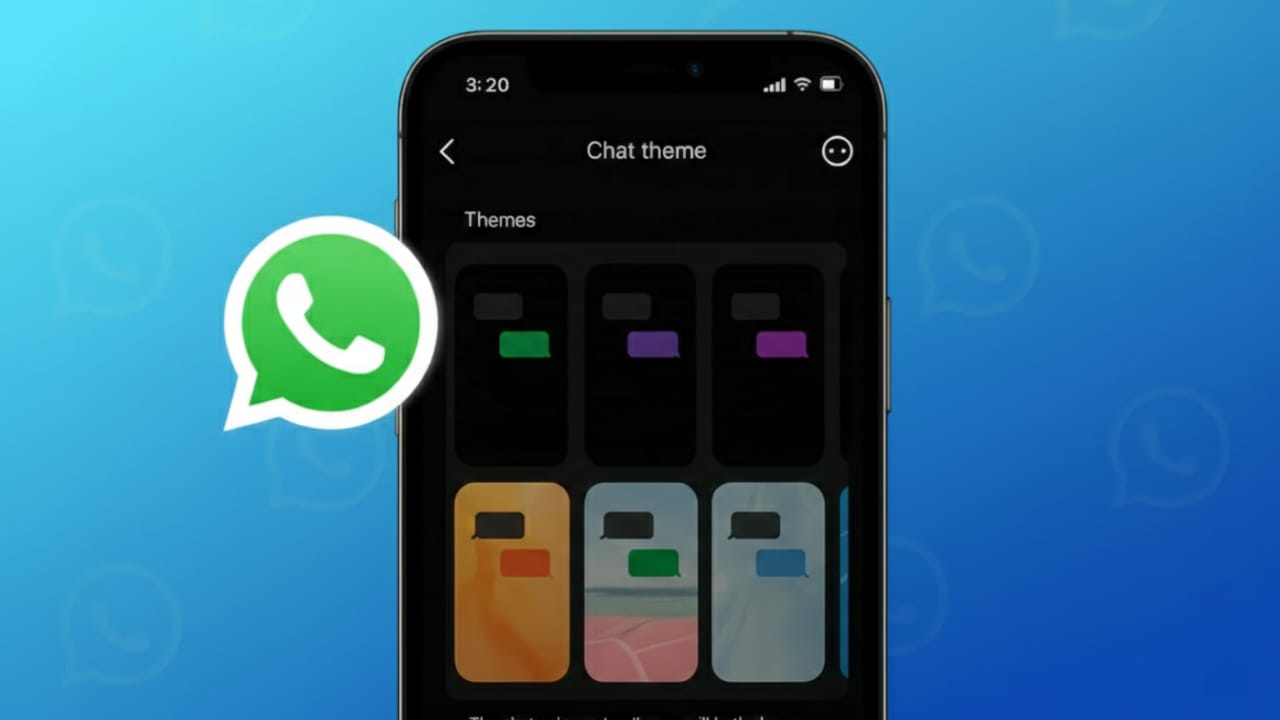
Using the same chat background every day can make messaging feel dull over time. Thankfully, WhatsApp offers built-in options to customize chat themes and wallpapers, helping you create a look that feels comfortable and personal.
In this guide, you’ll learn how to change WhatsApp chat themes, apply custom wallpapers, and improve readability—without using any third-party apps or unsafe methods.
Also read: How to Watch Instagram Reels While Chatting on WhatsApp (Android & iPhone Guide)
Why Customizing WhatsApp Chat Themes Is Useful
Changing your chat appearance isn’t just about design. It can also improve your overall messaging experience.
Here’s how it helps:
- Makes long chats easier on the eyes
- Allows you to personalize conversations
- Helps you differentiate important chats
- Improves visibility in low-light conditions
- Keeps the interface clean and pleasant
Even small visual changes can make daily chatting more enjoyable.
How to Change WhatsApp Chat Theme or Wallpaper (Android & iPhone)
WhatsApp provides simple controls to update your chat background across all conversations.
Steps to Change the Default Chat Theme
- Open WhatsApp on your phone
- On Android, tap the three-dot menu; on iPhone, open Settings
- Go to Chats
- Tap Theme or Wallpaper
- Choose from available options:
- Light theme
- Dark theme
- Solid color backgrounds
- Default WhatsApp wallpapers
- Photos from your gallery
- Confirm and apply the selection
Your chat screen updates immediately after applying the changes.
How to Set a Different Wallpaper for One Chat Only
If you want a unique background for a specific contact or group, WhatsApp allows that too.
Steps to Customize a Single Chat
- Open the individual or group chat
- Tap the contact or group name at the top
- Select Wallpaper or Wallpaper & Theme
- Choose a background image (gallery or default)
- Adjust positioning if needed
- Tap Set
Only that particular chat will use the new wallpaper.
Wallpaper Ideas to Improve Your Chat Experience
Choosing the right wallpaper can improve readability and comfort.
Popular options include:
- Solid colors for a distraction-free look
- Dark backgrounds for night-time use
- Nature images for a calming feel
- Personal photos for close contacts
- Subtle abstract designs for a modern style
Always prioritize clarity over decoration.
Tips to Choose the Right WhatsApp Chat Theme
Before finalizing your wallpaper or theme, keep these practical tips in mind:
- Avoid very bright or overly detailed images
- Make sure text and emojis remain easy to read
- Solid or soft-color backgrounds work best
- Check contrast with chat bubbles
- Dark themes reduce eye strain in low light
Simple designs usually deliver the best long-term experience.
Also read: How to Use One WhatsApp Account on Two Phones (Official & Safe Method)
FAQs
Can I use my own photos as WhatsApp chat wallpaper?
Yes, WhatsApp allows you to select images directly from your phone’s gallery.
Does changing the theme affect all chats?
The default theme applies to all chats, but you can set custom wallpapers for individual conversations.
Is dark mode better for the eyes?
Dark themes can help reduce eye strain, especially in low-light environments.
Conclusion
Customizing your WhatsApp chat theme is a quick and safe way to refresh your messaging experience. Whether you prefer light mode, dark mode, or a custom wallpaper, these options help make chats more comfortable and visually pleasing.
Take a few minutes to explore different styles and choose what works best for your daily use. Small changes can make a noticeable difference.

Yogi Rajput is the author of Uscart.in, where he writes simple and helpful content about AI and how-to guides for beginners.