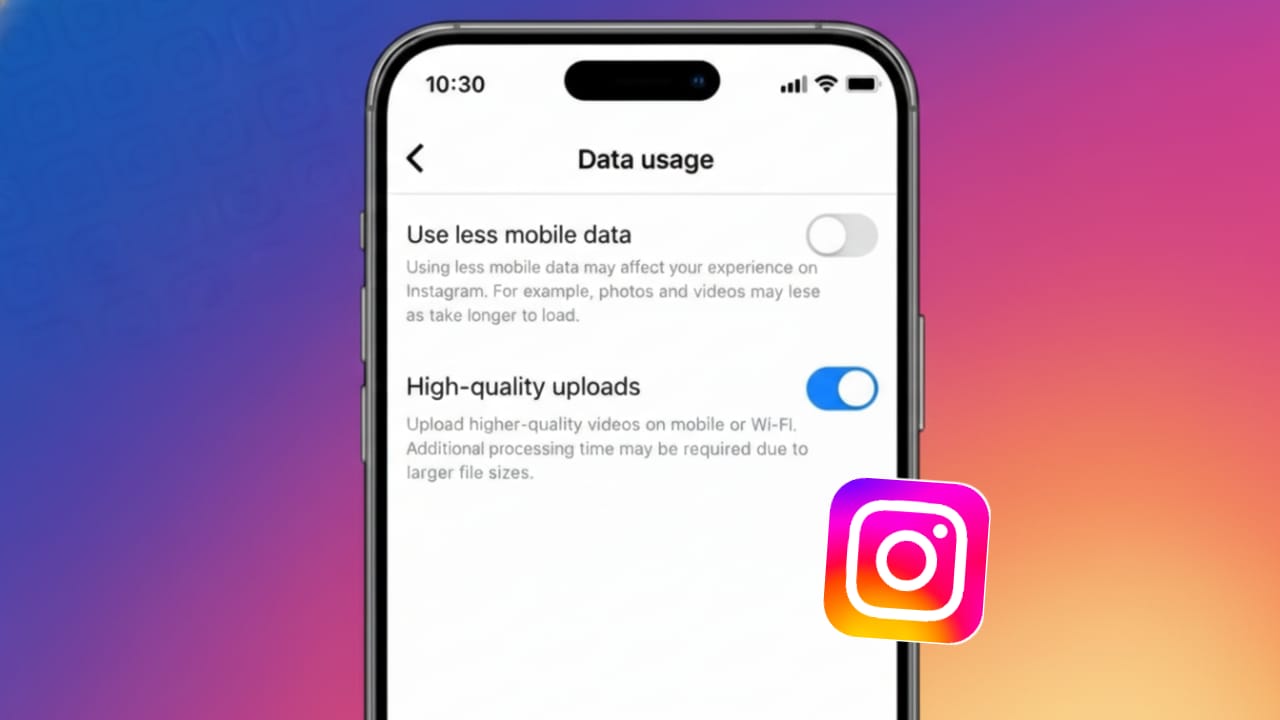
Instagram is designed to load content quickly, which is why it automatically compresses photos and videos during upload. While this helps save data, it can reduce sharpness, color accuracy, and overall clarity.
If you want your Instagram posts, reels, and stories to look cleaner and more professional, there’s a built-in setting that can help. This guide explains what high-quality uploads are, why they matter, and how to enable them correctly.
Also read: How to Share Your WhatsApp QR Code Easily (Step-by-Step Guide)
What High-Quality Uploads Mean on Instagram
High-quality uploads allow Instagram to process your photos and videos with reduced compression. When this option is turned on, your content keeps more visual detail, better color depth, and smoother video quality.
Instagram still applies some compression to maintain performance, but the loss is far less noticeable compared to the default upload settings.
Why High-Quality Uploads Are Worth Using
Enabling this option is especially helpful if you:
- Share photos taken with modern smartphones or cameras
- Post reels or videos frequently
- Care about consistent visual quality
- Run a creator, influencer, or business account
- Want your content to look sharp on larger screens
The main trade-off is higher data usage, which is something to keep in mind if you’re not on Wi-Fi.
How to Turn On High-Quality Uploads on Instagram
You can enable this setting on both Android and iPhone using the same steps.
Step 1: Open Instagram Settings
- Launch the Instagram app
- Go to your profile page
- Tap the three-line menu in the top-right corner
- Select Settings and privacy
Step 2: Access Media Quality Options
- Scroll down and tap Data usage and media quality
- Look for upload-related quality settings
Step 3: Enable Highest Quality Uploads
- Turn on Upload at highest quality
Once enabled, Instagram will upload your photos and videos at better quality whenever your connection allows it.
Should You Use High-Quality Uploads on Mobile Data?
If you have a limited data plan, this setting should be used carefully. High-quality uploads can consume significantly more data, especially for long videos and reels.
Best Practices
- Upload content using Wi-Fi whenever possible
- Avoid uploading large files on weak mobile networks
- Turn on data saver only when necessary
- Use a stable internet connection for videos
Does This Setting Apply to Stories and Reels?
Yes. When high-quality uploads are enabled, the setting applies to:
- Feed posts
- Instagram stories
- Reels
However, final quality also depends on your original file resolution, lighting conditions, and internet speed during upload.
Tips to Get the Best Instagram Upload Quality
To maximize results, follow these simple tips:
- Record photos and videos in good lighting
- Avoid over-editing or heavy filters before uploading
- Upload directly from the Instagram app instead of third-party tools
- Keep your Instagram app updated to the latest version
These small steps help Instagram process your content more efficiently.
Also read: How to Enable Two-Step Verification on WhatsApp and Secure Your Account
FAQs
Will high-quality uploads make my posts look perfect?
It improves clarity, but results still depend on the original photo or video quality.
Does this setting slow down uploads?
Uploads may take slightly longer, especially for videos, due to higher file size.
Can I turn it off anytime?
Yes, you can disable the option anytime from the same settings menu.
Conclusion
If visual quality matters to you on Instagram, enabling high-quality uploads is a smart and simple improvement. It takes only a moment to turn on and can noticeably enhance how your photos and videos appear to viewers.
For best results, upload using Wi-Fi and start with high-quality original content. Small settings like this can make a big difference in how professional your Instagram profile looks.

Yogi Rajput is the author of Uscart.in, where he writes simple and helpful content about AI and how-to guides for beginners.