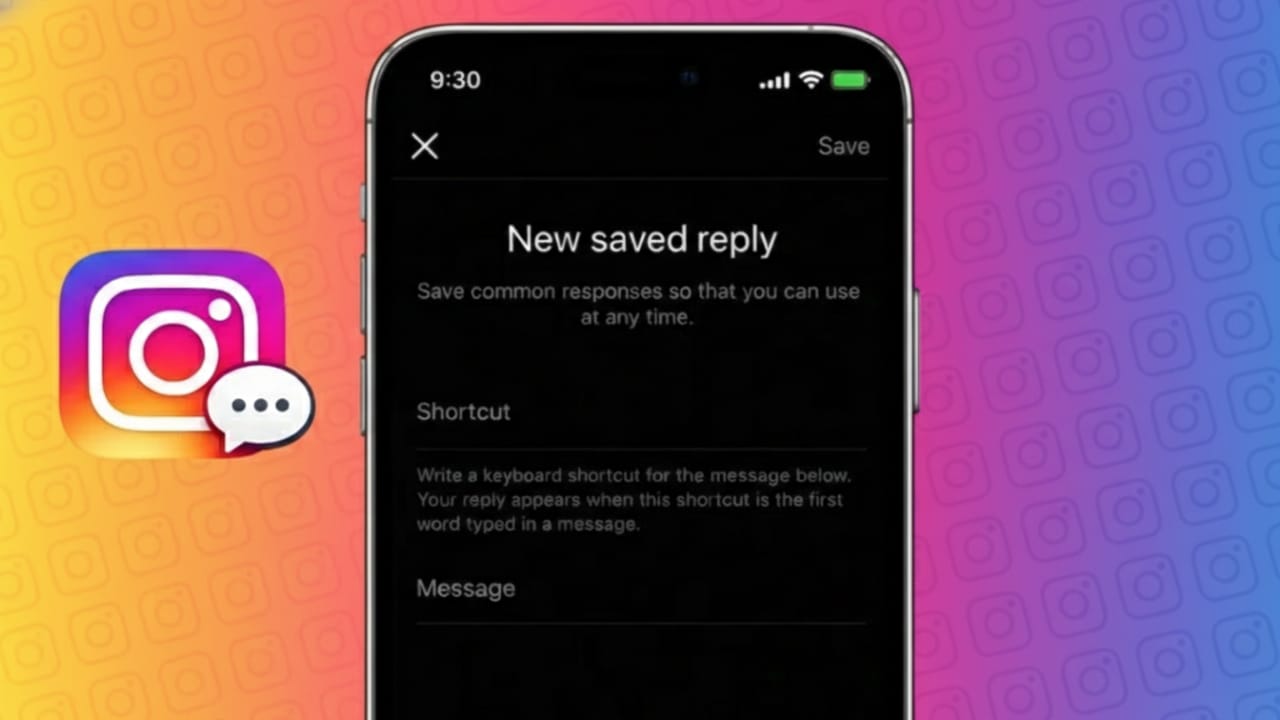
If you often receive the same questions on Instagram, replying manually every time can become tiring and time-consuming. Instagram’s Saved Replies feature solves this problem by letting you store ready-made responses that can be reused instantly.
This tool is especially helpful for creators, business owners, and professionals who manage daily messages. In this guide, you’ll learn what Saved Replies are, who can use them, how to set them up, and the best ways to use them effectively.
Also read: How to Enable High-Quality Uploads on Instagram (Step-by-Step Guide)
What Are Saved Replies on Instagram?
Saved Replies are pre-written message templates stored inside Instagram. Instead of typing the same response repeatedly, you can insert these messages into DMs using a simple shortcut.
Why Saved Replies Are Useful
- Respond faster to frequently asked questions
- Maintain consistent communication
- Reduce manual typing
- Manage DMs more efficiently
This feature is built directly into Instagram and does not require any third-party tools or apps.
Who Can Use Saved Replies on Instagram?
Saved Replies are available for accounts using Instagram’s professional features, including:
- Business accounts
- Creator accounts
If you’re currently using a personal account, switching to a professional account may be required to access this option.
How to Set Up Saved Replies on Instagram
Creating Saved Replies takes only a few minutes and works the same way on Android and iPhone.
Step-by-Step Setup
- Open the Instagram app
- Go to your profile page
- Tap the menu (three lines) in the top corner
- Open Settings and privacy
- Select Creator tools and controls or Business tools
- Tap Saved replies
- Choose Add new saved reply
- Enter a shortcut keyword
- Write the full message
- Save your reply
Once saved, your message template is ready for use.
How to Use Saved Replies in Instagram DMs
Using a saved reply while chatting is quick and seamless.
Steps to Insert a Saved Reply
- Open Instagram Direct Messages
- Select any conversation
- Type the shortcut you created
- Tap the suggested saved reply
- Send the message
Instagram automatically inserts the full response for you.
How to Edit or Delete Saved Replies
You can update or remove saved replies anytime to keep your messages relevant.
Steps
- Go to Settings and privacy
- Open Saved replies
- Select the reply you want to change
- Edit the text or delete it
- Save your changes
This helps ensure your replies stay accurate and useful.
Best Practices for Using Saved Replies
To keep your messages natural and professional, follow these tips:
- Keep replies clear and concise
- Use short, memorable shortcuts
- Avoid overly generic responses
- Add small personal touches when needed
Saved Replies should feel helpful, not automated.
Common Problems and Fixes
If you don’t see the Saved Replies option:
- Confirm your account is set to Business or Creator
- Update the Instagram app to the latest version
- Check both Business and Creator tool sections
- Feature placement may vary by account type
Also read: How to Enable Two-Step Verification on WhatsApp and Secure Your Account
FAQs
Are Saved Replies available on personal accounts?
No, this feature is designed for professional accounts. You’ll need to switch to a Business or Creator account.
Can I use Saved Replies for customer support?
Yes. Saved Replies are ideal for handling FAQs, pricing queries, and basic support messages.
Do Saved Replies work on all devices?
Yes, they work on both Android and iOS as long as your app is updated.
Conclusion
Instagram Saved Replies are a simple yet powerful way to manage messages efficiently. By setting them up once, you can save time, stay consistent, and respond faster without extra effort.
Whether you’re handling customer questions or daily follower messages, this feature helps keep your communication organized and professional.

Yogi Rajput is the author of Uscart.in, where he writes simple and helpful content about AI and how-to guides for beginners.